
Have you ever turned on your iPhone only to find it stuck on the Apple logo? This frustrating issue can happen to anyone, whether you have the latest iPhone 17 Pro Max or older models like the iPhone 6. In this detailed guide, we’ll cover why this happens, solutions, and how to fix it for every iPhone model, along with professional repair tips to avoid permanent damage.
What Does “iPhone Stuck on Apple Logo” Mean?
When your iPhone is powered on, it should boot up to the home screen smoothly. However, if it’s stuck on the Apple logo:
- It may restart repeatedly without success (boot loop).
- The screen stays on the Apple logo indefinitely.
- You may not be able to access apps, settings, or data.
This issue is usually caused by software glitches, failed updates, hardware issues, or water damage.
Common Causes of iPhone Stuck on Apple Logo
- Failed iOS Update – If the iPhone update process is interrupted, the device may fail to boot.
- Jailbreaking or Unauthorized Software – Modifying your iPhone software can lead to boot failures.
- Corrupted Apps or Settings – Third-party apps or incorrect settings may interfere with startup.
- Hardware Damage – Drops, water damage, or battery issues can prevent the iPhone from booting.
- Storage Issues – If your device runs out of storage during updates, the Apple logo freeze may occur.
iPhone Models Affected (Up to iPhone 17 Pro Max)
This problem can affect all iPhone models, including:
- iPhone 6, 6 Plus
- iPhone 6s, 6s Plus
- iPhone SE (1st, 2nd, and 3rd generation)
- iPhone 7, 7 Plus
- iPhone 8, 8 Plus
- iPhone X, XR, XS, XS Max
- iPhone 11, 11 Pro, 11 Pro Max
- iPhone 12, 12 Mini, 12 Pro, 12 Pro Max
- iPhone 13, 13 Mini, 13 Pro, 13 Pro Max
- iPhone 14, 14 Plus, 14 Pro, 14 Pro Max
- iPhone 15, 15 Plus, 15 Pro, 15 Pro Max
- iPhone 16, 16 Plus, 16 Pro, 16 Pro Max
- iPhone 17, 17 Plus, 17 Pro, 17 Pro Max
No matter which iPhone model you own, the solutions we discuss in this guide will help you fix it efficiently.
DIY Fixes for iPhone Stuck on Apple Logo
Before visiting a repair shop, you can try these safe DIY fixes.
1. Force Restart Your iPhone
Force restarting can solve minor software glitches. The method differs by model:
- iPhone 6, 6s, SE (1st gen): Press and hold Home + Power buttons until Apple logo reappears.
- iPhone 7, 7 Plus: Press and hold Volume Down + Power buttons.
- iPhone 8 and newer (including iPhone 17 Pro Max): Quickly press Volume Up, then Volume Down, then hold Power until Apple logo appears.
This simple method resolves temporary software freezes in many cases.
2. Update or Restore via iTunes / Finder
If a force restart doesn’t work:
- Connect your iPhone to a computer with iTunes (Windows or macOS Mojave) or Finder (macOS Catalina or later).
- Enter Recovery Mode:
- iPhone 6 to 7 series: Follow force restart steps but keep holding buttons until recovery mode screen appears.
- iPhone 8 to 17 series: Press Volume Up → Volume Down → Hold Power until recovery screen shows.
- Choose Update first (keeps your data).
- If Update fails, select Restore (this erases all data).
Note: Always back up your data regularly to avoid permanent loss during a restore.
3. Use Third-Party iOS Repair Tools
There are software tools that can fix iPhone stuck on Apple logo without erasing data:
- ReiBoot by Tenorshare
- iMyFone Fixppo
- Dr.Fone – Repair
These tools are compatible with all iPhone models up to iPhone 17 Pro Max and can resolve iOS corruption issues.
4. Check for Hardware Issues
If your iPhone is still stuck, it may be a hardware issue:
- Water damage
- Faulty battery
- Logic board issues
In such cases, professional repair is recommended. Attempting DIY hardware fixes can void warranty or cause permanent damage.
Professional Repair: When to Visit Cell Phone Quick Fix
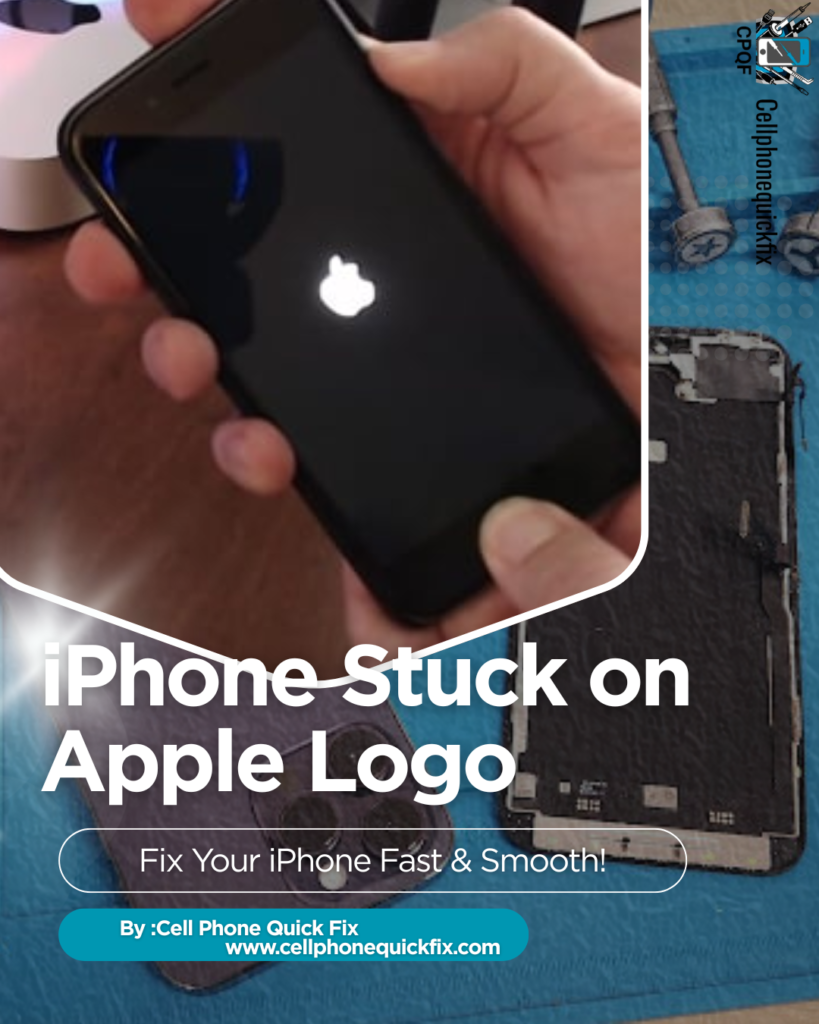
If the DIY methods don’t work, bring your iPhone to a professional repair service. At Cell Phone Quick Fix, we provide:
- iPhone stuck on Apple logo fix for all models, from iPhone 6 to iPhone 17 Pro Max.
- Same-day repair for most software issues.
- Data recovery options to prevent data loss.
- Expert technicians using certified tools and genuine parts.
- Affordable pricing and transparent repair process.
📞 Call: (404) 748-4459
🌐 Visit: www.cellphonequickfix.com
Tips to Avoid Future Apple Logo Freezes
- Keep iOS Updated – Install updates promptly.
- Avoid Jailbreaking – Modifications can corrupt system files.
- Backup Regularly – Use iCloud or iTunes backups.
- Monitor App Installations – Remove apps causing crashes or instability.
- Protect Your iPhone – Use a case and avoid water exposure.
Following these tips reduces the chance of your iPhone getting stuck on the Apple logo in the future.
FAQs About iPhone Stuck on Apple Logo
Q1: Will I lose my data if my iPhone is stuck?
- If you restore your iPhone via iTunes, yes. Using Update or third-party repair tools may save your data.
Q2: Does this happen to all iPhone models?
- Yes, it can happen to any iPhone model, from older iPhone 6 to the newest iPhone 17 Pro Max.
Q3: Can I fix it at home safely?
- Minor software issues can often be fixed with force restart or iTunes/Finder update. Hardware issues require professional repair.
Q4: How long does professional repair take?
- Most software-related issues are fixed same-day. Hardware repairs may take longer depending on parts availability.
Conclusion
An iPhone stuck on the Apple logo is frustrating, but it’s not the end of your device. Most issues can be resolved with:
- Force restart
- iTunes/Finder update or restore
- Third-party repair tools
- Professional service at a certified repair center
Whether you own the iPhone 6 or the latest iPhone 17 Pro Max, Cell Phone Quick Fix provides fast, reliable, and affordable repairs to get your iPhone back in working condition. Don’t wait — bring your device in today and enjoy seamless performance again.
📞 Call Now: (404) 748-4459
🌐 Website: www.cellphonequickfix.com